Get Inventory Information
The ANTA CLI offers multiple commands to access data from your local inventory.
List devices in inventory
This command will list all devices available in the inventory. Using the --tags option, you can filter this list to only include devices with specific tags (visit this page to learn more about tags). The --connected option allows you to display only the devices where a connection has been established.
Command overview
$ anta get inventory --help
Usage: anta get inventory [OPTIONS]

  Show inventory loaded in ANTA.

Options:
  -u, --username TEXT             Username to connect to EOS  [env var:
                                  ANTA_USERNAME; required]
  -p, --password TEXT             Password to connect to EOS that must be
                                  provided. It can be prompted using '--
                                  prompt' option.  [env var: ANTA_PASSWORD]
  --enable-password TEXT          Password to access EOS Privileged EXEC mode.
                                  It can be prompted using '--prompt' option.
                                  Requires '--enable' option.  [env var:
                                  ANTA_ENABLE_PASSWORD]
  --enable                        Some commands may require EOS Privileged
                                  EXEC mode. This option tries to access this
                                  mode before sending a command to the device.
                                  [env var: ANTA_ENABLE]
  -P, --prompt                    Prompt for passwords if they are not
                                  provided.  [env var: ANTA_PROMPT]
  --timeout FLOAT                 Global API timeout. This value will be used
                                  for all devices.  [env var: ANTA_TIMEOUT;
                                  default: 30.0]
  --insecure                      Disable SSH Host Key validation.  [env var:
                                  ANTA_INSECURE]
  --disable-cache                 Disable cache globally.  [env var:
                                  ANTA_DISABLE_CACHE]
  --use-session-auth / --no-session-auth
                                  Enable or explicitly disable eAPI session
                                  authentication globally. When unset, per-
                                  device inventory values apply.  [env var:
                                  ANTA_USE_SESSION_AUTH]
  -i, --inventory FILE            Path to the inventory YAML file.  [env var:
                                  ANTA_INVENTORY; required]
  --inventory-format [yaml|json]  Format of the inventory file, either 'yaml'
                                  or 'json'  [env var: ANTA_INVENTORY_FORMAT]
  --tags TEXT                     List of tags using comma as separator:
                                  tag1,tag2,tag3.  [env var: ANTA_TAGS]
  --connected / --not-connected   Display inventory after connection has been
                                  created
  --help                          Show this message and exit.
Tip
By default, anta get inventory only provides information that doesn’t rely on a device connection. If you are interested in obtaining connection-dependent details, like the hardware model, use the --connected option.
Example
Let’s consider the following inventory:
---
anta_inventory:
  hosts:
    - name: dc1-leaf1a
      host: 172.16.1.101
      tags: [dc1, leaf]
    - name: dc1-leaf1b
      host: 172.16.1.102
      tags: [dc1, leaf]
    - name: dc1-leaf1c
      host: 172.16.1.151
      tags: [dc1, leaf]
    - name: dc1-leaf2a
      host: 172.16.1.103
      tags: [dc1, leaf]
    - name: dc1-leaf2b
      host: 172.16.1.104
      tags: [dc1, leaf]
    - name: dc1-leaf2c
      host: 172.16.1.152
      tags: [dc1, leaf]
    - name: dc1-spine1
      host: 172.16.1.11
      tags: [dc1, spine]
    - name: dc1-spine2
      host: 172.16.1.12
      tags: [dc1, spine]
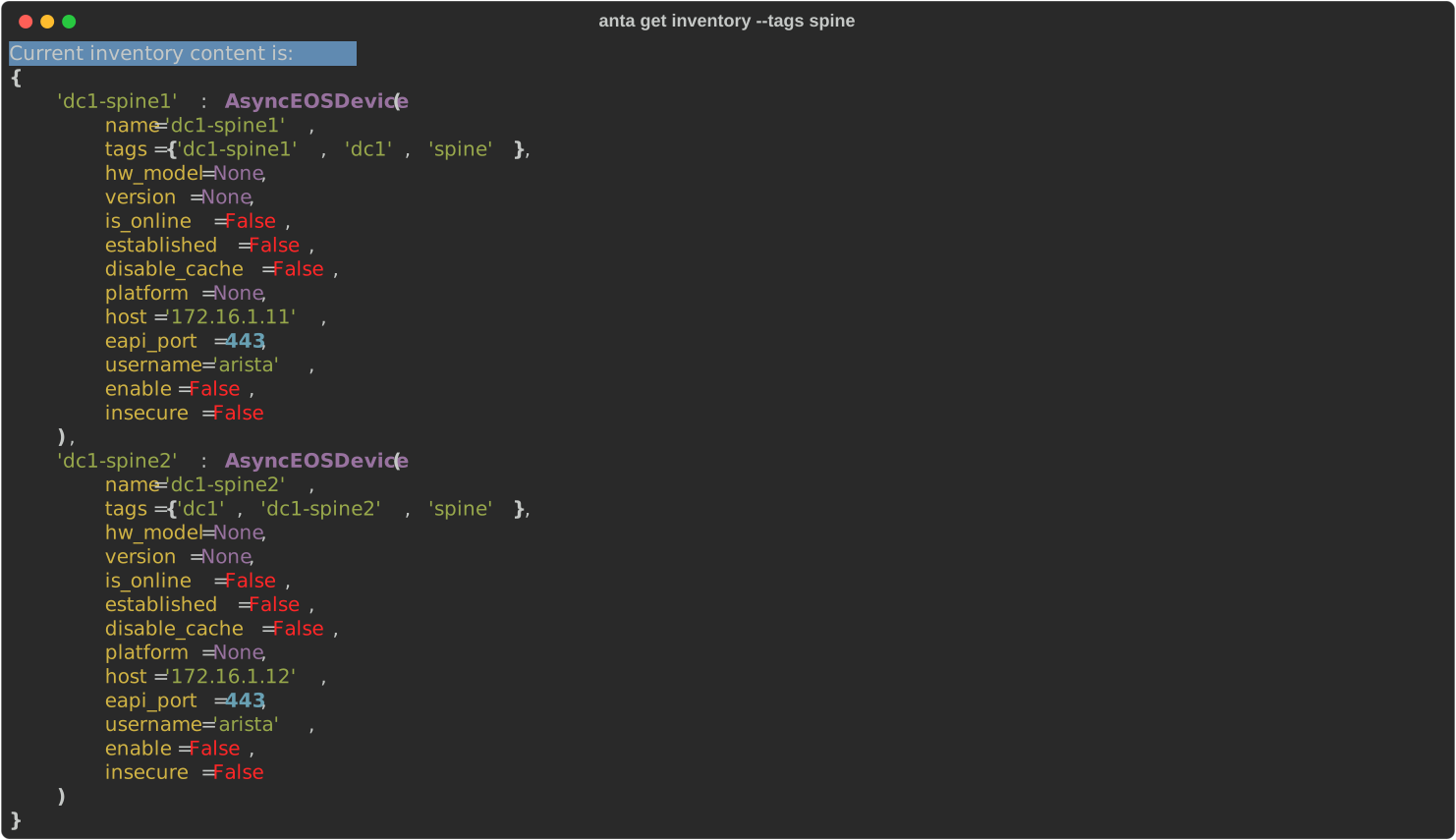
To retrieve a comprehensive list of all devices matching the spine tag along with their details, execute the following command. The output contains the data loaded for those devices from your inventory file.
anta get inventory --tags spine